Tuesday, 14 June 2016

Primary Key Auto Insert In ADF (Equivalent to before commit trigger in forms)

Hi Everyone in this post i will describe how to auto insert Primary key in ADF , The key will be save before commit , means when ever a user enter a new record and hit save , the primary key will automatically append with the new record and save in database

For this post i use Departments table
So to insert Primary key automatically just Run your jdeveloper and create a new Application and
create Departments Entity object and View object , if you don't know how to create new Application please click on following link

http://adfindepth.blogspot.com/2016/05/how-to-start-with-adf.html

After creating Application the first step is generate DepartmentsImpl class
just double click on Departments Entity object , then click on java Tap , and then click on Edit java option
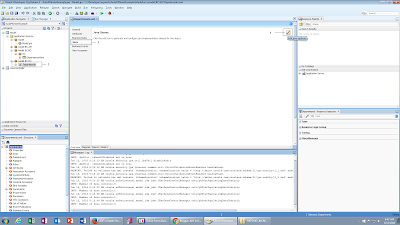


Now check the box "Generate Entity Object Class" and also make sure that check boxes are checked for
Accessors
Data Manipulation Method
Create Method
Remove Method
After checked all the five check boxes click on OK


Now click on the link to open the DepartmentsImpl class


Now at the end of DepartmentsImpl class create a method to generate Max Id


After creating maxId method , modify the doDML method , in the following way
(Note  :-    ADF Framework automatically created doDML method when you generate DepartmentsImpl class , you just need to modify it according to your requirement)


After modifying doDML method just click on save


Now double click on Departments Entity Object and click on attributes ,
Then select DepartmentId and unchecked Mandatory


Again click on save all , and Right click on AppModule and select Run

Now double click on DepartmentsView1 and click on + sign
After clicking on + sign , you can enter new record ,
Fill DepartmentName
ManagerId
and LocationId
but do not enter any value for DepartmentId (it will automatically save)
After insert three values then click on "save change to database" (commit)


After clicking on "save change to database"(commit)
you will see this view


Please Feel Free To Ask if you Face any Difficulty 
Like and share to help others
Thanks
Date 15-06-2016


Saturday, 11 June 2016

How to Create View Link in ADF

Hi Everyone in this post i simply show you how to create ViewLink between two View Objects in ADF
For this post i have created two SQL Query base view objects  , name as
EmpQB and
DeptQB
if you don't know how to create Query base view object please visit the following Link

http://adfindepth.blogspot.com/2016/06/sql-query-base-view-object-manually.html 

To create View Link
Just Right Click on Model and select New


Then from the "New Gallery" select ADF Business Components form categories and View Link from Items and then click OK


In next window select View Link Name and Display Name and click on Ok


In next window select DepartmentId from DeptQB in "Select Source Attribute" side (Master table)
Then from EmpQB also select DepartmentId in " Select Destination Attribute" side   (Detail table)
click on "Add"
and Then click on Next


Next window show the properties of View Link    , for now we go with the default properties , Just click on Next


Again Just click on Next


Again Next


In next window you can add an instance of this view link to an AppModule
For this checked the "Add to Application Module " check box
Then click on Browse and select AppModule and click on OK
Now Click on Next


The next window just show the summary about this View Link
click on Finish


Now to check view Link properly created or not
Right Click on AppModule and select Run


From the New Window double click on DeptNdEmpVL and check data , it will be look like the following pic


Now move to next Department by click on arrow sign and you will see the employees data will also change
according to Department


Please Feel Free To Ask if you Face any Difficulty 
Like and share to help others
Thanks
Date 10-06-2016

Friday, 10 June 2016

List of Values in ADF (Manually Creation of ADF Business Components and Types of View Object Part 5)

Hi Everyone this is the fifth part about  Manually Creation of ADF Business Components and Types of View Object
In the previous post i have described how to create Static List base View Object , if you haven't seen yet please visit the following Link

http://adfindepth.blogspot.com/2016/06/static-list-base-view-object-manually.html 

In this post i will show you how to create List of Values for a specific attribute
(I have created std_info table in database and also std_info view object in my previous post , if you heavn't seen yet please visit the above link )
For this post we use a Student _information Form , it has four attributes
Std_ID
Std_Name
Std_age , and
Gender
To save Gender we have a List of Values on input  form , The List of value has three options
Male
F.Male
Other
Now in database the value of Gender will be save in following way
1) if user select 'Male' then in database 'M' will be save
2) if user select 'F.Male' then in database  'FM'  and
3) if user select 'Other' then in database 'O' will be save

For lov values  i use another static list base View object
(i have created static  view object and std_info View object  in my previous post , the link is mention at the start of this post)

To create List of values on Gender Attribute 
Double click on "StdInfoView" view object  then select Gender from attributes   and click on List of values
then click on + icon


When you click on the + icon a new window will display in front of you
then from the new window click on + icon to select List Data Source then select and move StaticVO from left to right


Then in List Attribute select baseValue  and click on Ui Hints


After clicking UI Hints , select and move Definition attribute from left to right
also checked the "No selection Item"  check box , then choose value "Label item first of List "
and write the value as shown in the following pic and press ok


Now just Right click on AppModule and select Run


Now double click on StdInfoView1 , it will show blank form , because we haven't insert any record in this table , so it shows just attribute's name
To insert Record just click on + icon and enter the values
For Gender select 'Male' from list of values
after setting the values , must click on commit button


So you select 'Male' form List of values , and it should be save as 'M' in database
To confirm this Run your PLSQL Developer and check the value form std_info table
it should be like this


Please Feel Free To Ask if you Face any Difficulty 
Like and share to help others
Thanks
Date 11-06-2016


Static List Base View Object in ADF (Manually Creation of ADF Business Components and Types of View Object Part 4)

Hi Everyone this is the fourth part about Manually Creation of ADF Business Components and Types of View Object , if you haven't seen the previous post please visit the following Link

http://adfindepth.blogspot.com/2016/06/sql-query-base-view-object-manually.html

In this post I'll show you how to create Static List base View object ,
Why we need Static List base View Object ??
Suppose you have an input form name as "Student information" , and this input form store the information about Student , The form contains the fields
Std_ID
Std_Name
Std_age , and
Gender
To save Gender we have a List of Values on input  form , The List of value has three options
Male
F.Male
Other
Now in database the value of Gender will be save in following way
1) if user select 'Male' then in database 'M' will be save
2) if user select 'F.Male' then in database  'FM'  and
3) if user select 'Other' then in database 'O' will be save

To do this
First create Std_info table in hr schema
create table Std_info
(Std_id number,
Std_name varchar2(50),
Std_age number,
gender char(1))


Now Run your jdeveloper , start a new application and select Std_info table as Entity object then base on this Std_info Entity object create View Object
if you don't know how to create new application please visit the following Link
http://adfindepth.blogspot.com/2016/05/how-to-start-with-adf.html

To create Static List base View Object (later this view object will use to create list of values)

Right click on Model and select New


Then from the new Gallery select ADF Business Components from Categories and View object from Items and select OK


In next window write your view object name for this application i write staticVO and select static list as Data Source , then click next


In next window create two transient attribute name as
Defination
baseValue
To create attributes just click on New button and then write the name of attribute


In next window you can set different properties of  created attributes
for now just make sure both of the attributes are String type and baseValue attribute mark as key Attribute


In next window you can set attribute's value
to define value just click on + icon three times and set values in the following way


In next window you can add and instance of this view object to an AppModule
just checked the "add to application Module" check box
click on Browser button
then select AppModule


The next window just show the summary of this created view object just click Finish .


Continue ................
To visit the next part please click on the following Link
http://adfindepth.blogspot.com/2016/06/list-of-values-in-adf-manually-creation.html


Please Feel Free To Ask if you Face any Difficulty 
Like and share to help others
Thanks
Date 11-06-2016


SQL Query Base View Object in ADF (Manually Creation of ADF Business Components and Types of View Object Part 3 )

Hi Everyone in this post i will describe how to create SQL Query base View Object
This is the third post about   Manually Creation of ADF Business Components and Types of View Object
in the previous part i have explain how to create AppModule
if you haven't seen yet please visit the following URL 

http://adfindepth.blogspot.com/2016/06/manually-creation-appmodule-manually.html

To create Query base View Object
Right click on Model and select New


In the next window Select ADF Business Components from Categories and view object from Items and click OK


From next window write the name of view object , you can also set the Display name of the view object  and select SQL Query  Then Next


In next window write your Query (For this your connection must be establish with database)
Then to check your query press the button  "Test and Explain"
if Test show successful then  close the Test Query Window and click Next


In next window you can sat Bind variables if you need any , For now we have no need to define bind variables so just click on Next


In next window you can see the Mapping of Attributes , just Click on Next


In Attributes Window , just click on Next


In Next window you can set the Attribute Name , data types , set Alias for attribute
One important thing is from the window must select any key attribute its very important because with out selecting any key attribute view object not work properly
so i select EmployeeId as a key Attribute


In Next window you can generate Java classes for this view object , For Now we have no need so just click on Next


In next window you can select the AppModule under which you want to use this view Object
To slect the AppModule
Checked the "Add to Application Module"
click on Brows button and select AppModule and then click on Next


In next window you can see the summary of this view object , just click on Finish


You have successfully created new Sql Query base view object
To test this just Right Click on AppModule and select Run


Now Double on EmpQB1 , you can see the result
Second important thing is , it is not update able view object means you will not be able to perform DML operations on it , because it is Query base View object and you can just view the data...


Continue ................
To visit the next post please click on the following Link
http://adfindepth.blogspot.com/2016/06/static-list-base-view-object-manually.html


Please Feel Free To Ask if you Face any Difficulty 
Like and share to help others
Thanks
Date 10-06-2016

Manually Creation AppModule in ADF (Manually Creation of ADF Business Components and Types of View Object Part 2 )

Hi Everyone This is second part of  Manually Creation of ADF Business Components and Types of View Object (Part 2) In this post i will show you how to create Manually AppModule , in my previous Post i have explain
Types of View Object and
Entity Base View Object
if you haven't seen yet please visit the following URL
http://adfindepth.blogspot.com/2016/06/manually-creation-of-adf-business.html

To create AppModule Manually 

Right Click on Model and select New


From New Gallery Window Select ADF Business Components from Categories and Application Module from items and Select OK


In the next window you can change AppModule Name or display name , For this application i go with default Name , after Name click on Next


In next window you can Select View objects that you want to use under this AppModule
i select the EmpVO that i have created in my previous post (URL mention at the start of this post)


In next Window just click on next


In next window you can generate AppModuleImpl  and AppModuleDefImpl class (java classes) , but for now we have no need to generate these classes , so just click on Next


Next Window just show the summary of AppModule , just click Finish


So you have successfully created AppModule , Now just Right click on AppModule and select Run


In the AppModule window you can see EmpVO , just double clcik on EmpVo view object to show the data


Now you can see data , for the next record just click on arrows sign , and if you want to add data just click on + icon and hit commit ....


In actual Employees table there are many attributes but here we can see   only three attributes (id, First Name , Last Name ) , this is because , in my first part
( Entity Object Base View Object ( Manually Creation of ADF Business Components and Types of View Object (Part 1) )) ,
i have created this view object base on Entity Object , and i select only these three attributes
 Continue....
The URL of Next Post is
http://adfindepth.blogspot.com/2016/06/sql-query-base-view-object-manually.html


Please Feel Free To Ask if you Face any Difficulty 
Like and share to help others
Thanks
Date 10-06-2016


Query to get Business unit (ORGANIZATION_ID) Detail in oracle Fusion

  SELECT HAO.ORGANIZATION_ID AS BUSINESS_UNIT_ID,         HAOT.NAME,         HAO.BUSINESS_GROUP_ID,         HAO.EFFECTIVE_START_DATE,       ...